Limit Orders, Take Profit and Stop Loss on Robinhood Chain
A practical guide to the Orders tabs: standalone limit orders, automated exits, per-trader rules, and what each order status means.
To place limit orders, take profits and stop losses on Robinhood Chain with Quickscope, open Portfolio or a token page, choose Orders, and select Create order. Review the trigger, amount and expiry before confirming. These are on-chain token orders in Quickscope, a separate product from Robinhood’s brokerage app. You can review orders on your Portfolio page or on an individual Robinhood Chain token page.
There are two kinds of automation to distinguish: individual orders use a price in USDG per token, while copy-trading exit rules use a percentage move from your weighted entry. The Orders view shows both, but their settings and sell sizes differ.
Find your orders
Sign in with the wallet that owns your Quickscope account. Open Account to reach Portfolio, then choose Orders beside Positions and Activity. On a token page, choose Orders beside Live swaps and Tracked holders. The token page filters individual orders and copy exit rules to that token; Portfolio shows them across your account.
Choose Open for pending or executing orders and applicable copy exit rules. Choose History for individual orders that have finished, failed, expired or been cancelled. Orders are currently available for Robinhood Chain tokens.
Create a limit buy
- Click Create order and select Limit buy.
- On Portfolio, enter the Robinhood token contract address. On a token page, the address is already selected.
- Enter the Limit price (USDG per token) and Amount (USDG). The current form accepts buys from 1 to 500 USDG.
- Set Slippage (%) and Expires (local time). Expiry must be in the next 30 days.
- Click Review order, inspect the token, price, amount, slippage and expiry, then click Create order to submit it.
A limit buy waits for an eligible price at or below your limit. An order may execute immediately if the current eligible price already meets the condition. Open buys reserve USDG plus applicable account fees, so some of your balance may already be committed.
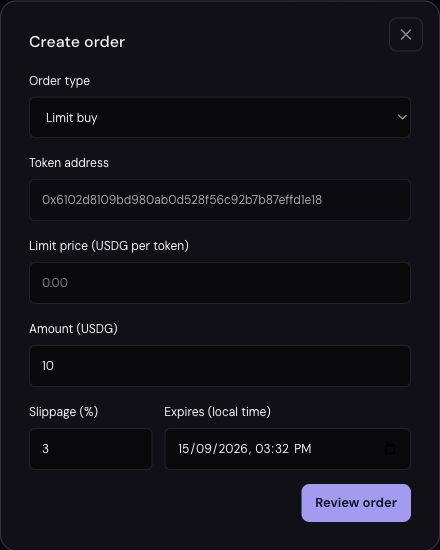
The screenshot uses example inputs to show the interface. They are not suggested trading settings.
Create a limit sell, take profit or stop loss
Select Limit sell, Take profit or Stop loss in Create order, then choose an available open Position. Positions are separated by their source, such as a copied trader or a manual buy. Select the position you actually intend to close.
Enter a price in USDG per token. Limit sells and take profits trigger at or above that price; stop losses trigger at or below it. For example, a trigger of 0.02 means 0.02 USDG per token, not a 2% move from entry. This example explains the unit only.
Standalone sell orders close the full selected position. The individual-order form does not offer principal-only or partial sells. Set slippage and expiry, review the order, then confirm. A trigger is a condition for attempting execution, not a guarantee of a fill or a specific price.
Edit or cancel an individual order
While an order is pending, click Edit to change its price, buy amount where applicable, slippage or expiry. Review the changes and choose Save changes. The order type and selected token or position stay fixed; cancel and create another order to change those.
To remove a pending order, click Cancel order, then confirm the cancellation. It moves to History rather than disappearing from the record. An order already executing cannot be edited or cancelled. If the order changes while you are reviewing it, refresh and inspect its latest state before trying again.
Manage copy-trading take-profit and stop-loss rules
The Copy-trading TP / SL section shows the enabled rules for applicable copied positions. Use View copy settings, then edit the trader's subscription from Account. These settings apply to open positions copied from that trader, rather than just one standalone order.
For each enabled take-profit or stop-loss rule, choose a percentage threshold relative to your weighted entry and a sell amount: Full position, Principal only, or a chosen percentage. Principal recovery aims to sell enough to recover outstanding invested USDG; if the position cannot cover it, that option sells what remains. Each rule runs once until the position closes and reopens.
Stopping a trader's copy subscription pauses its automatic copy exit rules as well as new copied buys. It does not close existing holdings. Review any separate individual orders yourself; do not assume stopping a subscription cancels them.
Read the status before retrying
Pending means waiting for an eligible trigger. Executing, planned and sent mean processing is underway; sent is not yet a confirmed fill. Filled means execution has been confirmed. Cancelled, expired and failed orders remain in History. Simulated identifies a dry-run result and does not mean a live trade happened.
If a save response is uncertain, use Check status / retry on that same order. Creating another order while the first result is unknown can duplicate your intent. For a failed execution, read the displayed error and check available funds, token limits, position availability, liquidity and service status.
Start with the FOMO copy-trading setup guide, or read how to buy and sell manually. Then open Quickscope to review your own settings.